
Broadcast Overlay
Broadcast Overlay is a transparent 1920 × 1080 browser source that places the same live caption output over your programme video.
Get the overlay URL
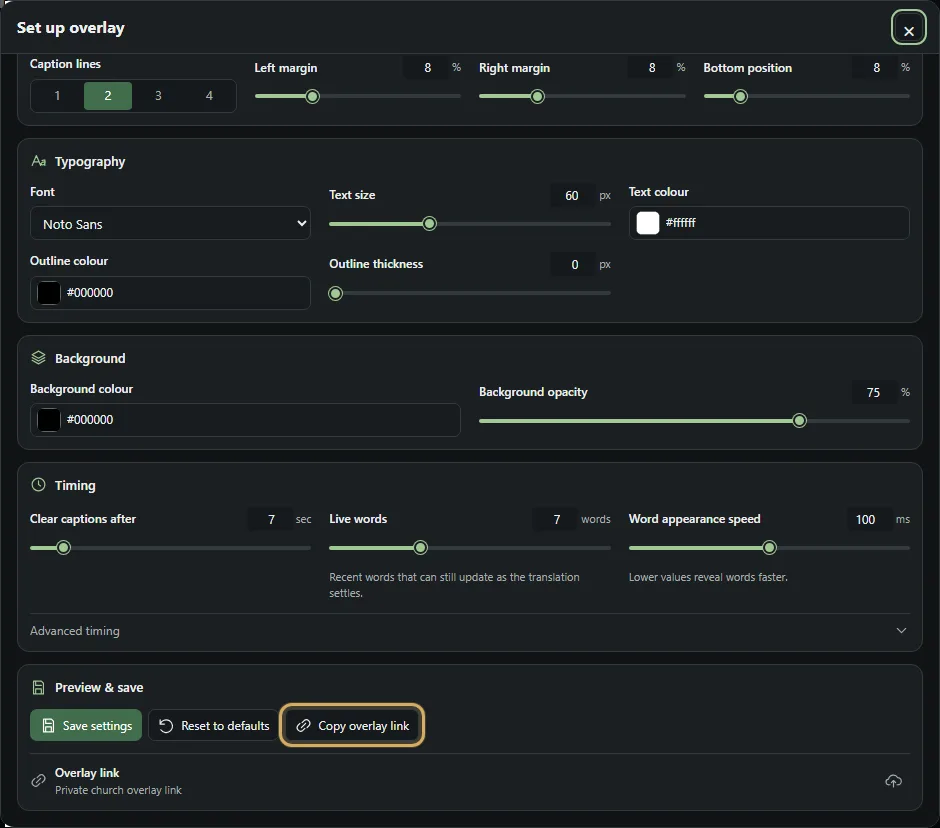
- Open Set up overlayIn the Windows Operator, open Settings and choose Set up overlay. The same church configuration is available in the Church Dashboard where Broadcast Overlay is enabled.
- Configure the lookChoose rows, font, size, colours, background opacity, safe margins and clearing behaviour. Save the settings.
- Copy overlay linkChoose Copy overlay link. Treat the full URL as a private production credential and do not publish or screenshot its secure token.
Add it to OBS Studio
- Add a Browser SourceIn the Sources dock, choose Add (+), then Browser.
- Paste the URLUse the copied Logos Translate overlay link in the URL field.
- Set dimensionsUse Width 1920 and Height 1080. Scale the source with the scene if your programme canvas differs.
- Keep transparencyThe overlay page is transparent. Do not add an opaque browser background or replace the page CSS.
- Layer it above videoPlace the Browser Source above the camera, programme or presentation source in the Sources list.
- Test before liveStart a short Logos Translate session and verify captions, safe area, line wrapping and language output in Preview.
If OBS appears stale, open Browser Source Properties and choose Refresh cache of current page. Confirm the URL is complete and the operator session is live.
See the official OBS Browser Source guide for the current source controls.
Add it to vMix
- Add an InputChoose Add Input, then Web Browser.
- Paste the URLEnter the Logos Translate overlay link in the Web Browser URL field.
- Set dimensionsUse Width 1920 and Height 1080 so the overlay matches its design canvas.
- Use as an overlay layerPlace the Web Browser input above the programme/video input in your vMix composition. The page background remains transparent.
- Test before liveStart sample captions and inspect the vMix Preview before taking the composition to Output.
If the vMix browser input is stale, reload or recreate that Web Browser input, then verify the copied URL and current overlay settings. See the official vMix Web Browser guide for its current input options.
Other production software
Use the same 1920 × 1080 URL in software that supports a transparent browser/web source. Confirm that browser transparency, live updates and layering work in that product before relying on it for a service.
Troubleshooting
- Make sure Broadcast Overlay is enabled and the complete private URL was pasted.
- Keep the Browser/Web Browser source above the programme video.
- Start live captions; the source can stay blank when no recent caption exists.
- Refresh the browser source after changing a cached URL or saved settings.
- Check the production computer's internet access and system clock.