Windows Operator app
One authorised operator controls the service from the Windows computer connected to the church speech feed.
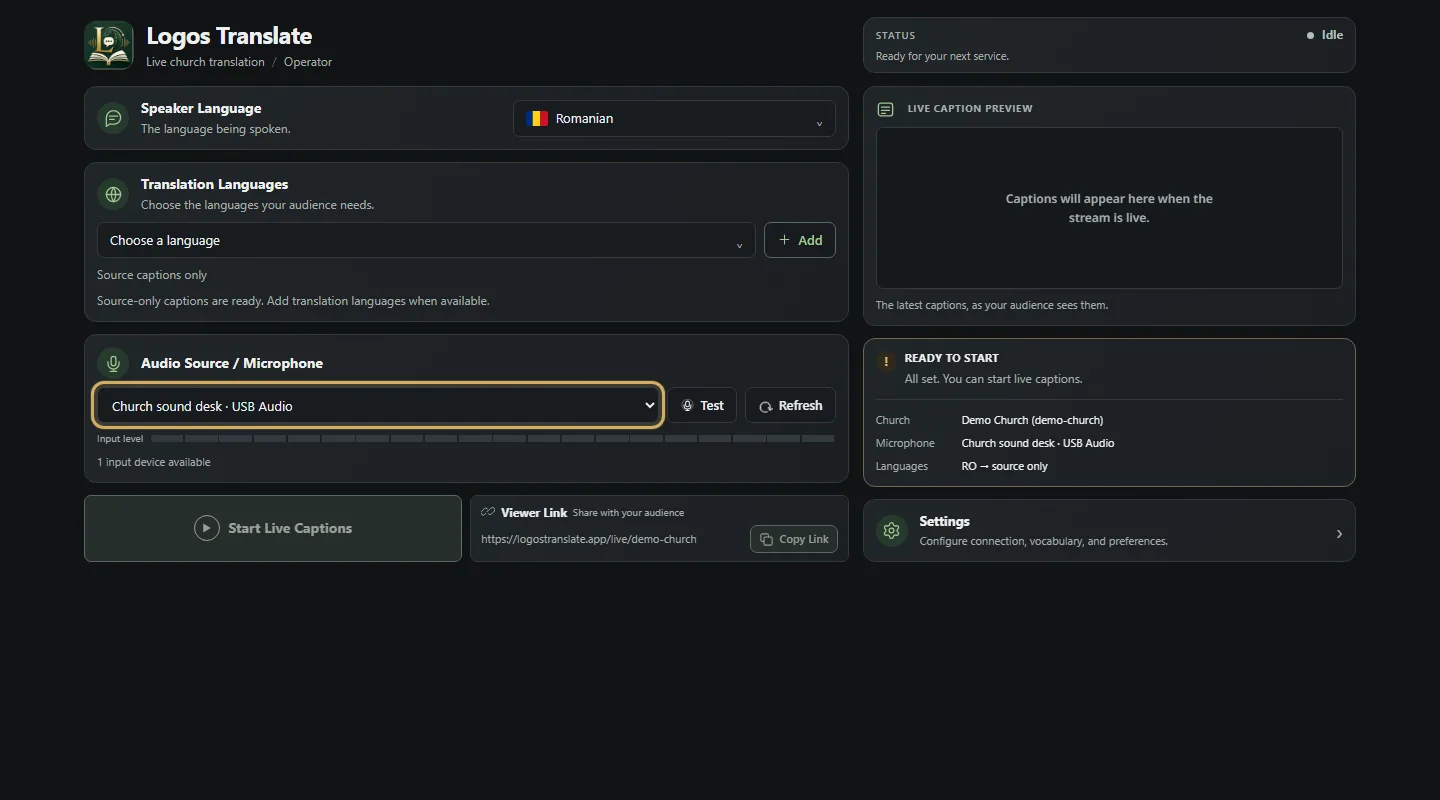
- Install the current releaseDownload it from Church Dashboard → Operator App, open the installer from Downloads and follow setup. If Windows shows “Windows protected your PC”, confirm the file came from your dashboard, choose More info, then Run anyway. See Before your first service for the complete installation walkthrough.
- Sign in and select the churchOpen Settings, authenticate and choose the correct Workspace / Church.
- Choose Audio Source / MicrophoneSelect the sound desk interface or microphone. Choose Test and speak at normal service volume; the input meter should move without clipping.
- Select the spoken languageSpeaker Language must match what the preacher is speaking.
- Add translation languagesAdd only the languages needed for the service, within the church's available translated target capacity.
- Start Live CaptionsCheck Ready to Start, then begin the live session.
- Monitor and endWatch Live Caption Preview for recognition quality. When the service is finished, stop the session so usage ends correctly.